You know what you need. Here is how to make that visible — and get it.
Start with the two setup steps below. Then choose the flows that match your situation.
Create your profile
Your profile is your public credential on the network. Nonprofits, donors, and other organisations will see it before deciding to help you. A complete, honest profile builds trust.
- Go to Settings → Profile
- Add your full name or organisation name
- Add your role, location, and a short bio — who you are, what you do, who you serve
- Add a profile photo
- Set your profile visibility to Public — this makes you discoverable to nonprofits and donors
- Save
Create your wishlist
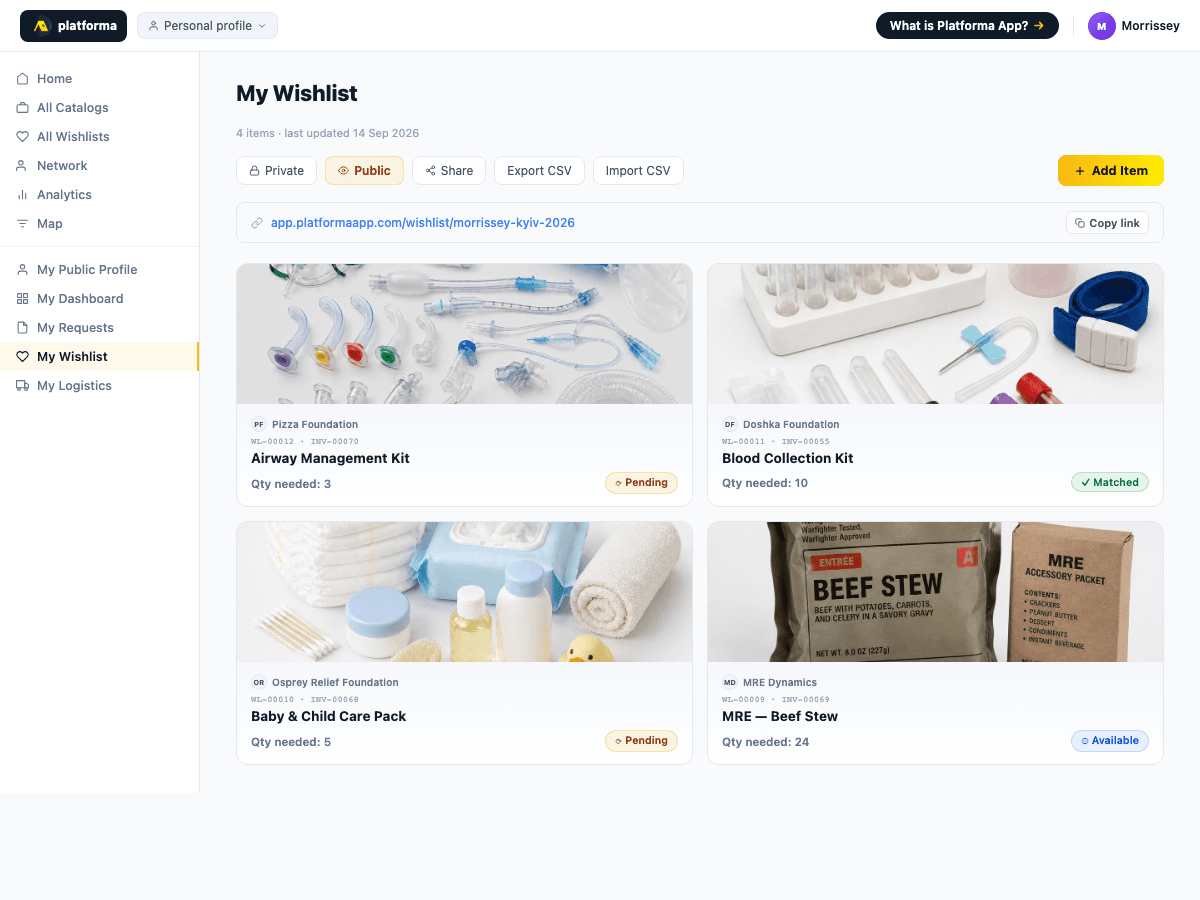
Your wishlist is a permanent, public list of what you need. It is always visible to nonprofits and donors browsing the network. Unlike a request, a wishlist item stays live until you remove it or mark it as fulfilled.
- Go to My Wishlist
- Click Add item
- Add items by describing them, photographing them (AI identifies and pre-fills), or searching the catalogue
- Each item shows: name, category, quantity needed, optional note
- Publish your wishlist — it is immediately visible to the network
- Share the link on social media, in funding applications, or when approaching nonprofits directly
Browse nonprofit catalogues and submit a request
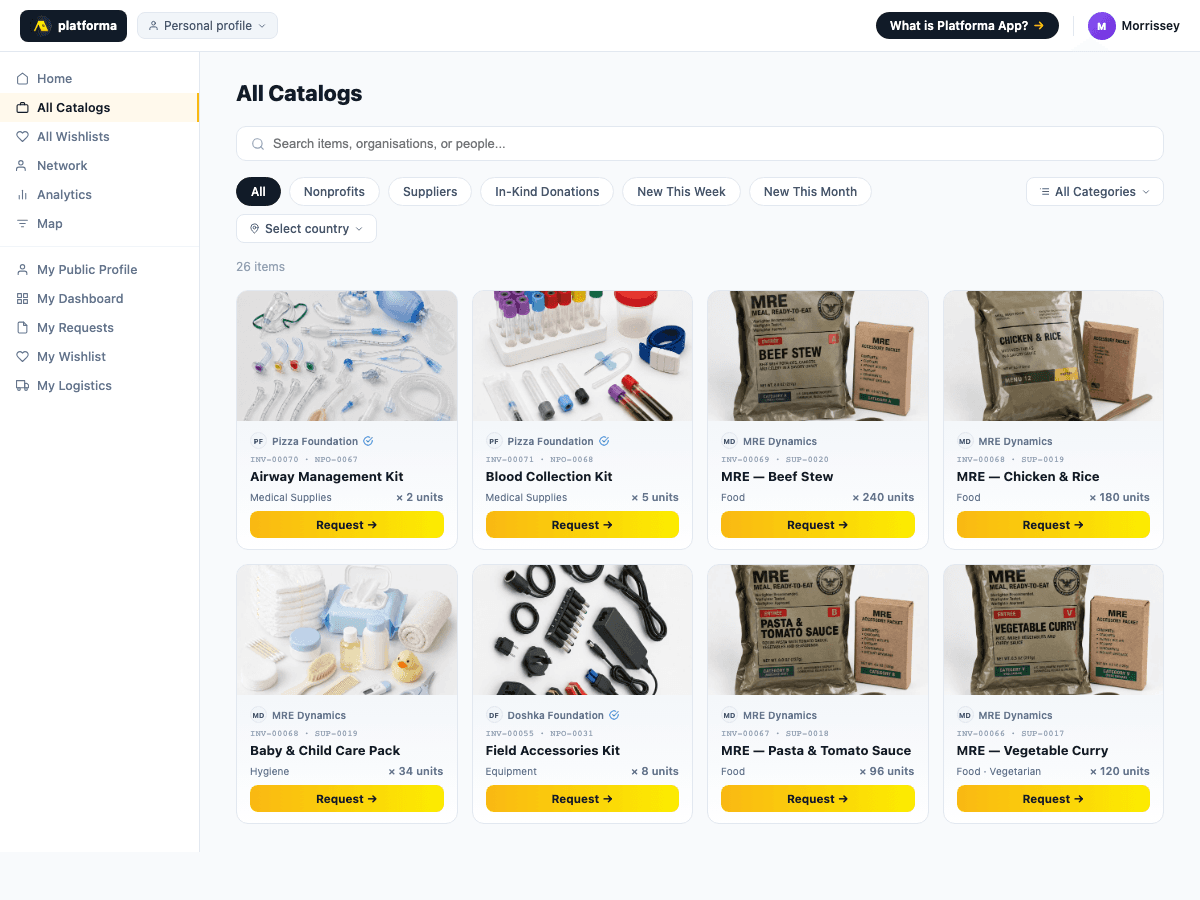
- Go to All Catalogs → Nonprofit Catalog
- Browse by category or search by item name
- Find the items you need and click Request
- Specify quantity and any delivery details
- Submit — the nonprofit receives your request in their inbox immediately
Track your request
Once submitted, you can follow your request in real time — no more waiting in silence.
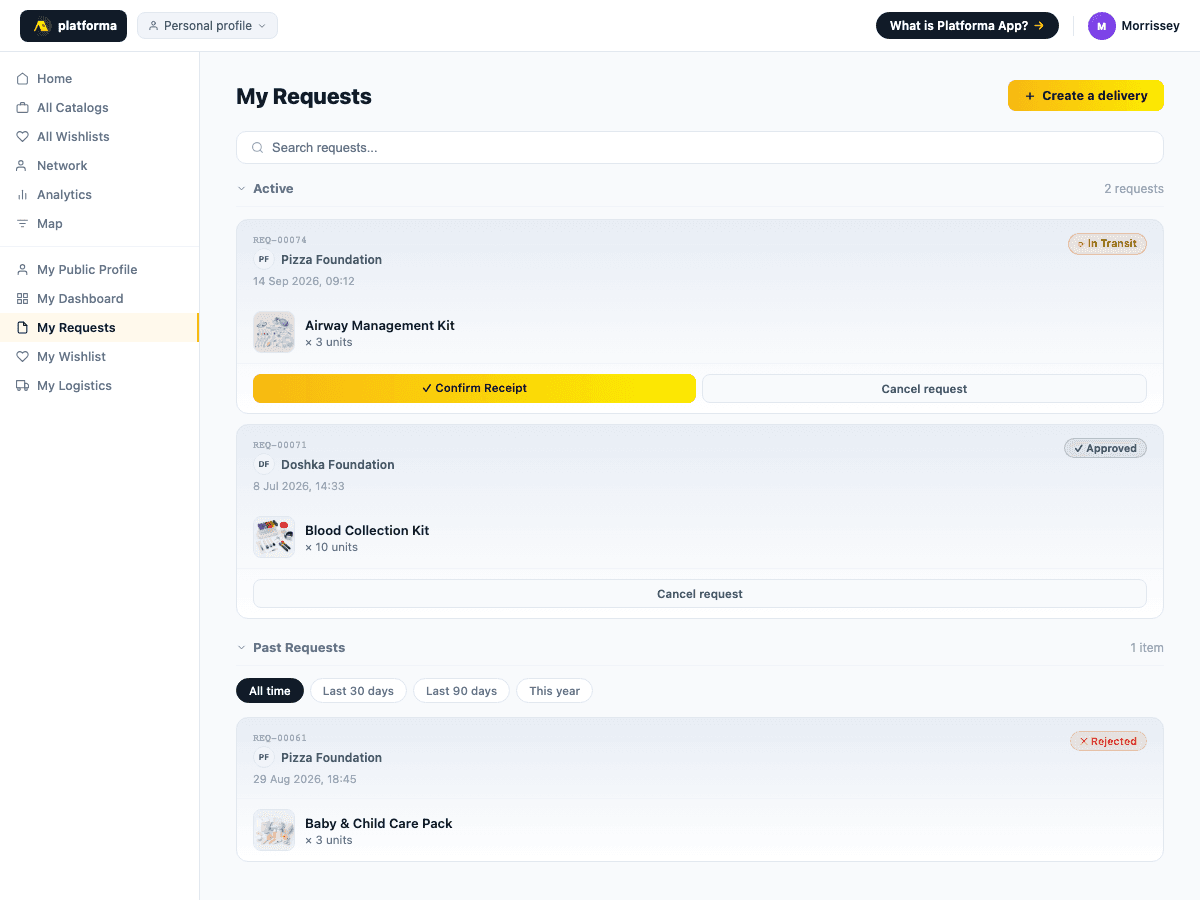
- Go to My Requests
- Each request shows its current status: Pending / Approved / Partially approved / Declined / In transit
- If partially approved: you can cancel the unfulfilled portion from the request detail view
- Once marked as delivered: confirm receipt on the platform
Confirm delivery
Confirming delivery closes the accountability loop — for you, for the nonprofit, and for the donor who funded the goods.
- Go to My Requests → find the delivered request
- Click Confirm receipt
- Attach a photo if possible — this becomes part of the impact report
- Confirm — the logistics record is closed and the nonprofit is notified