
Getting Started — Supplier
You have products to sell. Here is how to reach every verified nonprofit on the network.
Start with the two setup steps below. Once your catalogue is live, orders come to you.
Setup
1
Create your supplier profile
Your supplier profile is your storefront. Nonprofits browse it before placing orders. A complete profile with verified information significantly increases trust and conversion.
- Go to Settings → Organisation Profile
- Add your company name, logo, location, and contact details
- Write a short description: what you supply, what sectors you serve, where you can deliver
- Add your website and any relevant certifications
- Save — your profile is immediately visible to the network
2
Build your catalogue
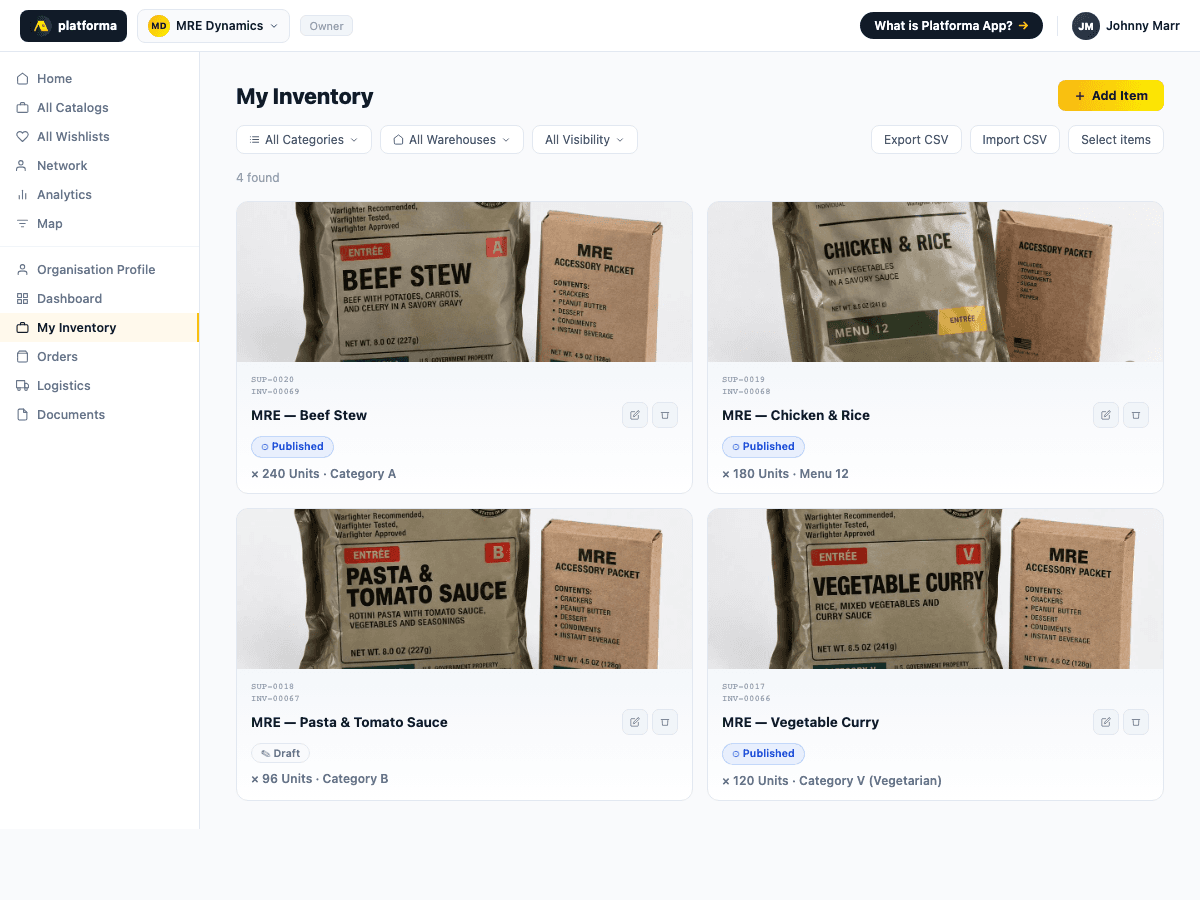
Your catalogue is the list of products nonprofits can browse and order. Without published items, you are not visible in the supplier search.
- Go to Inventory
- Add products one by one: name, category, subcategory, price, unit, stock level, photos, description
- Or use the camera shortcut — photograph a product and let the AI identify and pre-fill the fields
- Set each item to Draft (internal only) or Published (visible to nonprofits)
- Publish when ready — your items appear immediately in All Catalogs → Supplier Catalog
Each product receives a unique catalogue ID. Stock levels are updated automatically as orders are placed.
Flows
A1
Review and confirm the order
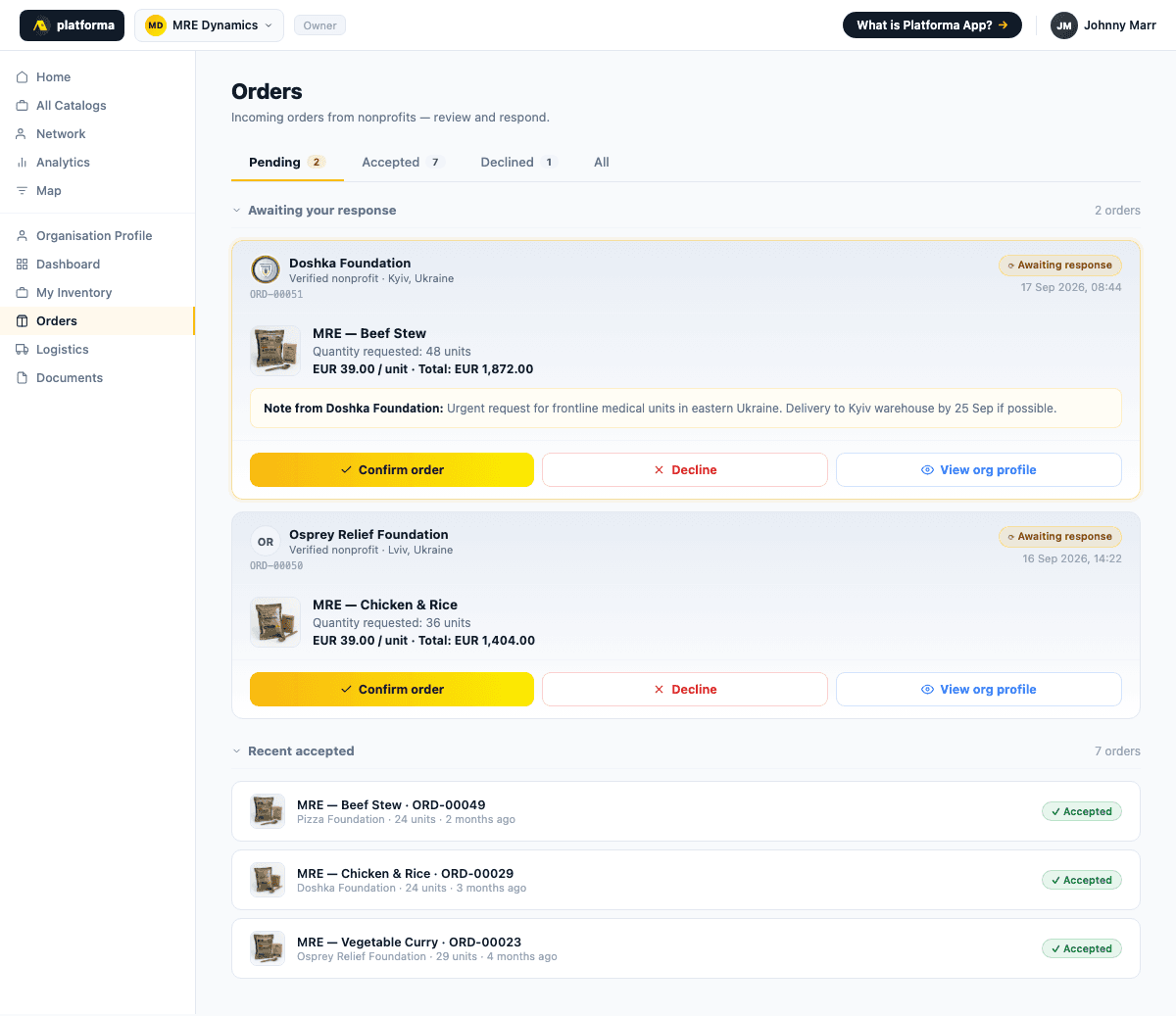
When a nonprofit places an order from your catalogue, you receive a notification immediately.
- Go to Orders
- Review the order: which nonprofit, which items, quantities, delivery address
- Click the order to open the full detail view
- Confirm or decline the order
- If confirming: stock is reserved automatically
A2
Prepare and ship
- Prepare the shipment according to the order
- Go to Orders → the confirmed order → mark as Shipped
- Enter the shipping date and carrier details
- Upload proof of shipment (carrier document, photo, waybill)
- The nonprofit is notified immediately that the order is on its way
A3
Confirm delivery
- Once the nonprofit confirms receipt on their side, the order is marked as Delivered in your dashboard
- The transaction is logged permanently on your public profile as a completed order
- Your track record on the platform grows with every completed delivery